Google Classroom
Today
210.5 MB
3.70.1008934421
Android 5+

Description
Google Classroom is a digital learning environment developed and maintained by Google platform. It helps teachers by allowing them to set up their course, create resources, send out notifications and assign work to their students. It also helps students by allowing them to join a course, submit their work and know when their work is due. Education is no longer limited to the classroom. Due to technological advances, it has become much more flexible.
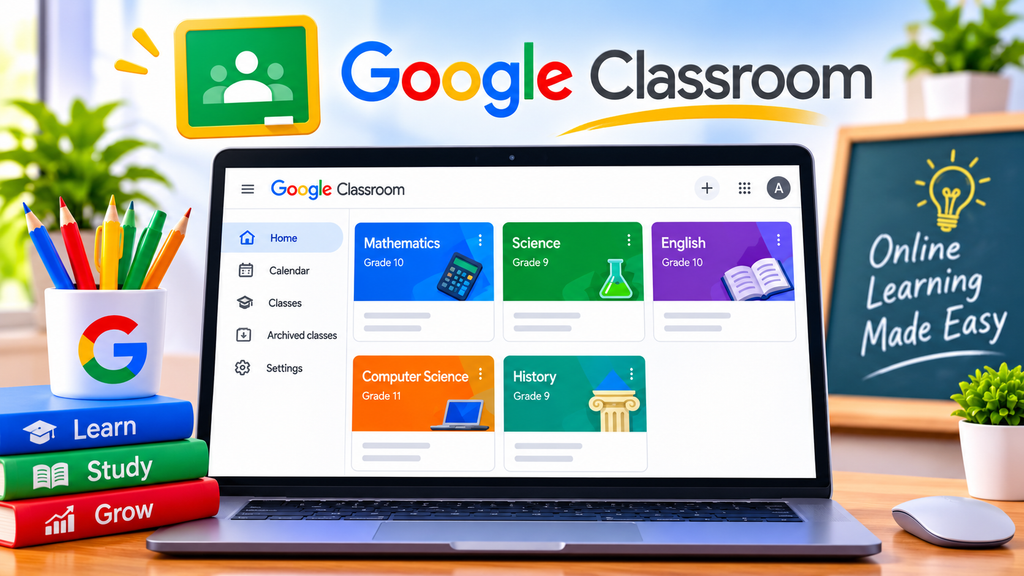
Moreover, Learning resources, materials and assignments can be easily accessed along with being able to interact with your teacher through the internet. This is useful for learning in schools, colleges, education and individual learning. Plus it can be used on computers, phones and tablets, making it easier for students. Another reason why this application is popular is due to its integration with other Google services. This includes Google Drive, Docs, Sheets and Meet. All these tools can be used to complete various learning activities.
What is Google Classroom?
Google Classroom is an online platform for education. This helps teachers and students connect. The main purpose of this site is to make it easier for Teachers to manage their classes and reduce paper work. Traditionally Teachers would hand out notes, collect homework, mark assignments and put key announcements. This can be very time consuming. However, with This application teachers can utilize various digital tools to organize their classes. Teachers can create a class, invite students by using a unique code or email address.
In addition, Once students have joined they will be able to access the stream. For example teachers can place a .pdf up for their lesson, share a worksheet via Google Docs and put a deadline on the homework. The students will be able to access the resource and complete their work. Announcements can be posted by teachers. They can answer questions and mark assignments. It isn’t a game or social media platform. It’s an education service that helps with online learning and traditional learning. The main purpose is to help teachers keep things organized.
Sign in or Log In to Google Classroom
Logging into Classroom is easy. However, you should ensure you’re using the correct Google Account. You may have a special education account from your school. Or if you’re eligible you can use your own account.
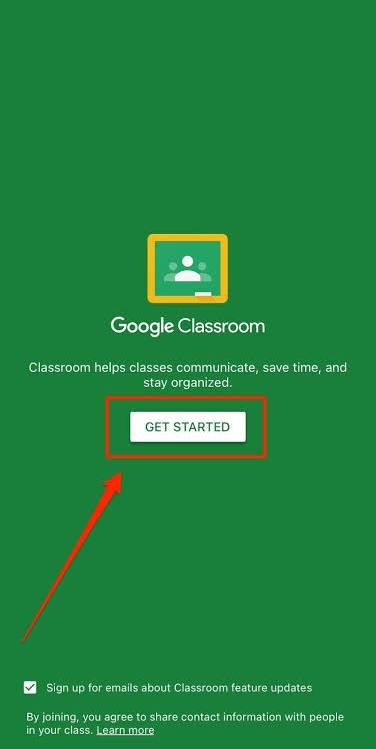
PC
- To log in follow the steps below.
- Open your browser on your computer or mobile device.
- Go to classroom.google.com.
- Click Sign In.
- Enter your Google Account email.
- Enter your password and click next.
- Select the correct account.
- Once you’ve logged in you’ll be taken to the homepage. Open your required class.
- Once you’re logged in students can view assignments, announcements and other shared resources.
- Teachers can also join their classes.
Mobile
- Students and teachers can use the app.
- Open the Google Classroom app.
- Download it either from google playstore or gameofpk.com
- Select Add Account if you aren’t logged in.
- Enter your Google Account details.
- Complete the sign in process.
- Select your class.
- Make sure your school hasn’t blocked you from using the account.
How to Create Google Classroom
It can be a helpful tool for teachers to have all their lessons in one place and interact with students online. This can be completed on a computer or using the app.
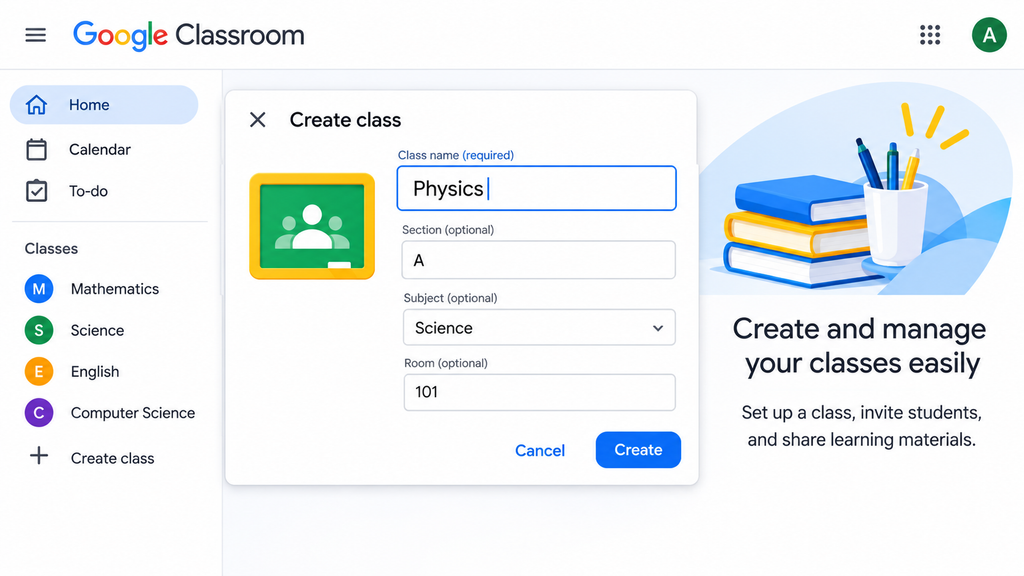
- Follow the steps below.
- Go to classroom.google.com.
- Log into your Google Account.
- Click the plus (+) button at the top of the screen.
- Select Create Class.
- Enter a suitable class name.
- Enter any additional information such as section, subject, room or class level.
- Click Create.
- Give your students the class code.
- Resources, announcements and assignments can now be uploaded by teachers. Students can join using the code.
If you cannot see the Create Class option, then you may only be able to join classes. Contact your school admin or make sure you’re using the correct account.
How to Join a Google Classroom
- Joining a class is commonly done. Usually students will be given a code by their teacher.
- To join using a class code follow the steps below.
- Open Google Classroom.
- Log into the account you’d like to use.
- Click the plus (+) button.
- Select Join Class.
- Enter the class code given by your teacher.
- Click Join.
- Wait for the class to show on your homepage.
Make sure you’ve entered the correct class code. If you can’t join ask your teacher to confirm that the class is active and you’ve been invited.
Download and Install Google Classroom
It can be accessed via the official website. However if you’d prefer to use it on a mobile device you can download the official app.
On Android
- Open the Google Play Store or gameofpk.com
- Search for Google Classroom.
- Ensure the developer is Google LLC.
- Select the official app.
- Click Install.
- Wait for it to download.
- Open the app and log in.
On iPhone & iPad
- Open the Apple App Store.
- Search for Google Classroom.
- Select the official app developed by Google.
- Click Get.
- Once it has downloaded, open the application.
- Log into your Google Account.
In Computer/PC
- You won’t need to install the app on your computer.
- Open Chrome, Firefox, Safari or another browser.
- Go to classroom.google.com.
- Log in using your Google Account.
- Add the website as a bookmark so it’s easier to access.
- Open the website whenever you want to
- Else if you want to download visit gameofpk.com
- Click download and a setup will be downloaded
- Avoid using unknown websites as they may have altered versions.
Main Features of Google Classroom
This platform has many useful features.
Easy to Create Classes
Teachers can easily create online classes. Each class will have a unique code that can be shared. This makes joining classes easier. Here. Teachers can also make mutiple classes for different subects for free.
Managing Assignments
One of the most useful functions is that teachers can give homework. Students can open their assignments, complete the work and submit. Teachers can then review the assignments.
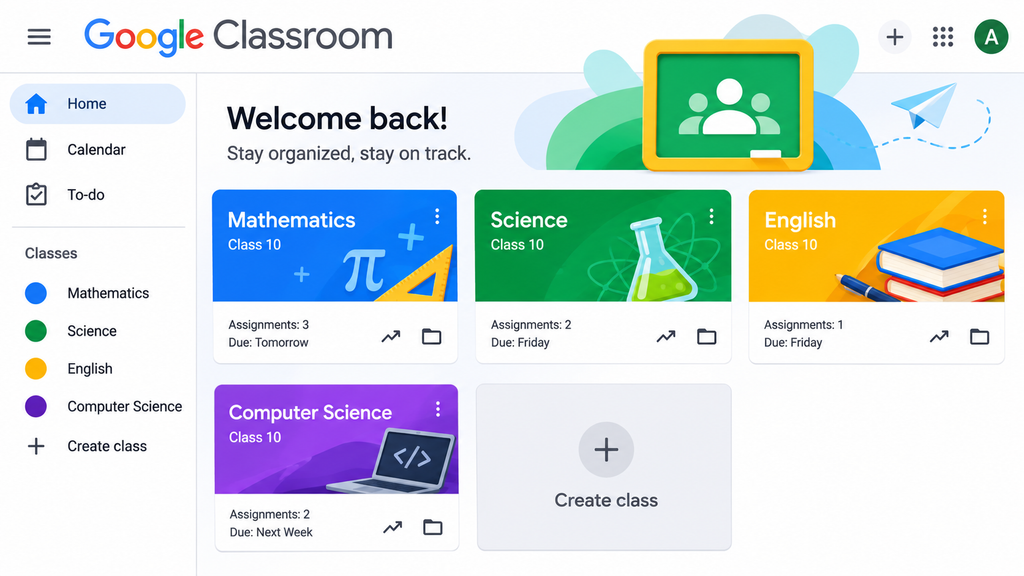
Share Learning Resources
Resources can be shared directly on the platform. Teachers can upload documents, presentations, images, videos and other useful resources. Using Google Drive makes it easier to organise resources. Students can easily find important resources for their lessons.
Post Announcements
Announcements can be made by teachers to inform students of any upcoming tests, deadlines and new lessons.Depending on the class settings students can also comment.
Grades & Feedback
Students need to know how they’re doing. Teachers can review assignments, give grades and return completed assignments. Students can then view their grades.
How to Leave a Google Classroom
Sometimes students may accidentally join a class or no longer need access to an old course. Below is how to leave a it.
- Also known as unenrolling.
- Open the Classroom.
- Log into the account linked to the class.
- Find the class you want to leave.
- Click the three dots on the class card.
- Select Unenroll.
- If asked to confirm click yes.
- The class will no longer appear.
How to Leave a Class on Google Classroom using a Phone
- Open the Classroom app.
- Find the class.
- Click the three dots.
- Select Unenroll.
- If asked to confirm click yes.
If you cannot see the option to unenroll then your school admin may have blocked certain actions. Contact your teacher or admin.
Benefits of Google Classroom
This application is a useful tool for modern education. It provides many tools to help with both in-class and remote learning.
- Everything is in one place.
- Assignments can be submitted digitally.
- Teachers and students can share updates.
- Can be used on supported computers and mobile devices.
- Teachers can send work and review assignments online.
- Students can receive comments and grades.
- Linked Google services can be used to share documents and presentations.
- This makes it a useful option for education institutions that want to improve their digital learning.
Conclusion
Google Classroom is actually an educational tool that is helpful for teachers to create classes, deliver teaching materials, create assignments and give feedback to their students. In addition it helps students to join classes, complete assignments and view their grades. It also integrates well with Google Docs, Drive, Sheets, Forms & Meet so is a good choice for teachers and students.
The app is available on mobile devices meaning students can easily access important class activities. Knowing the basic features of the apk will help you get to grips with using it. Whether you want to know how to log into the application, create an account, download the app or leave a class on Google. Overall it’s a convenient education tool.
FAQs
Log into the application, Click the plus (+) button. Select Create Class. Enter your class name and any additional information. Click Create and share the code with your students.
You’ll need a Google Account. Log into your account provided by your school or a personal account if you’re eligible. Your school may control what accounts can be used.
Yes. Students can open their assignments, attach their completed documents and submit. They can also view if they’ve received feedback.
First check your internet connection. Ensure you’re logging into the correct account. If you’re still having issues try changing your password or contact your school admin.
Yes, it is free to use for eligible users. However it depends on what type of Google Account you have. If you’re using an education institution then they may have Google Workspace for Education. Eligible individuals can use their personal Google Accounts. Some advanced tools may require a qualifying education license. Check what features you can access depending on your account.